Position Match
Position Match is an AI-powered tool that finds the best candidates for a position you are recruiting for. You pick the vacancy, and the engine evaluates your entire internal talent pool — ranking employees by how well they fit the job requirements — alongside the people who have already applied through Workable.
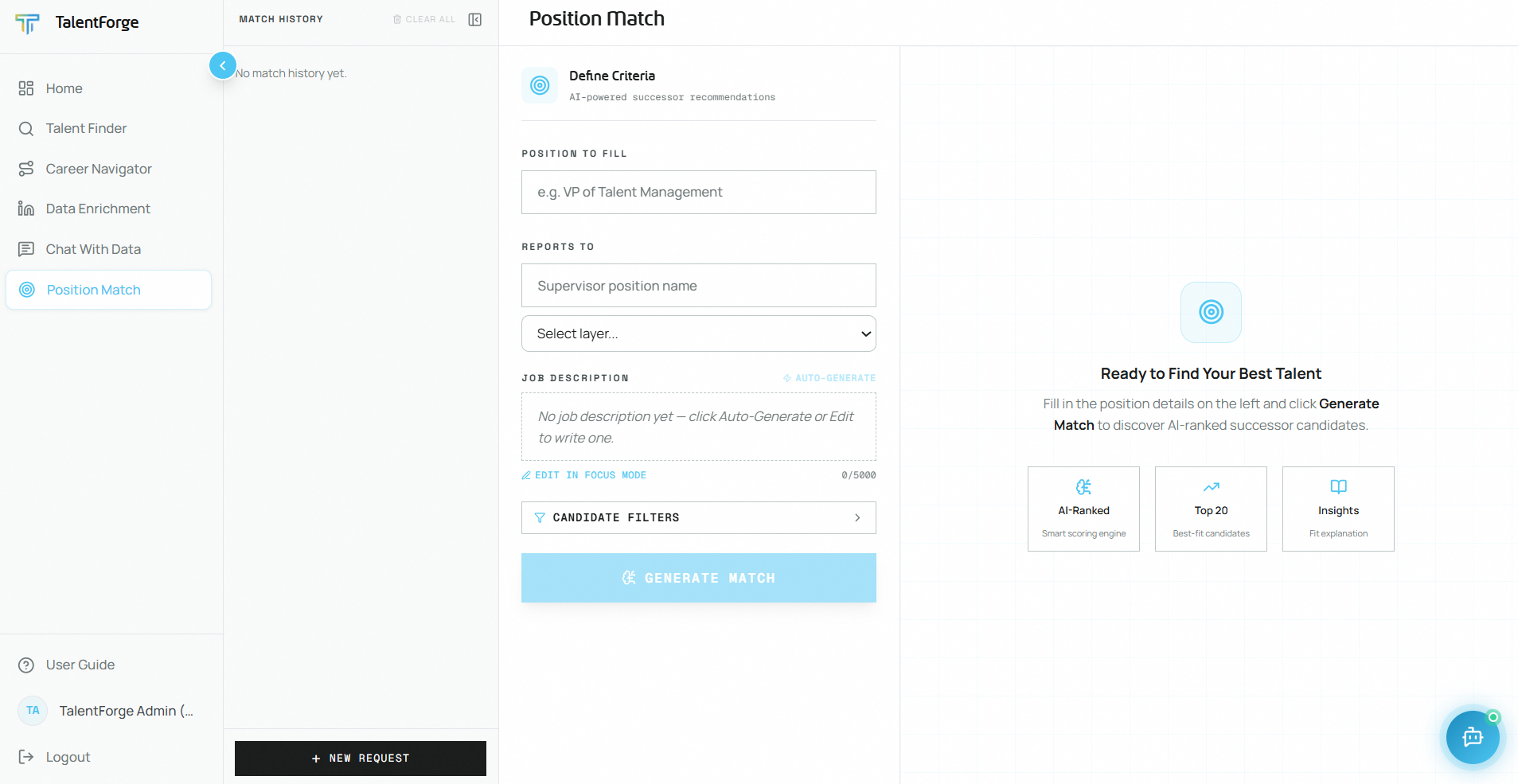
Step 1 — Fill in Position Details
Open Position Match from the navigation sidebar. The form in the center panel has two required fields:
| Field | What to enter |
|---|---|
| Position to Fill | The vacancy you are filling. Start typing and pick from your open Workable vacancies — the list is your published jobs, so the roles offered are the ones actually being recruited for. Free text is accepted for a role that is not advertised. |
| Job Description | The role's responsibilities and requirements. This is usually filled in for you — see Step 2. |
Picking a vacancy from the list does three things at once: it names the position, fills in the job description from the vacancy, and adds that vacancy to the Compare with Workable box so its applicants are scored too. All three are editable afterwards.
💡 Tip: Type into the field to search. If nothing matches, keep typing — free text still works, you just won't get the job description filled in for you or the applicant comparison.
Changed in v2.0.0: the Supervisor Position and Supervisor Layer fields have been removed. They asked you to look up something you often had to guess at, and the seniority they were meant to establish is already clear from the position title.
Step 2 — The Job Description
In most cases you do not have to write one. When you pick a vacancy, TalentForge fills the box with the description and requirements your recruiter already wrote in Workable, and marks it with a badge so you know where it came from:
| Badge | What it means |
|---|---|
| From Workable | Taken straight from the vacancy. This is the normal case — nearly every published vacancy has one. |
| Condensed | The vacancy was longer than the box allows, so the AI shortened it. Responsibilities and requirements are kept; company boilerplate and benefits are dropped. |
| AI-generated | You clicked Auto - Generate (see below). |
If the box comes up empty, the vacancy's full text has not synced yet. Click Auto - Generate and the system drafts a description from the position title, drawing on standard role definitions and market context. Review it before continuing.
The field is always fully editable, whichever source it came from. Once you have edited it, picking a different vacancy will not overwrite your text.
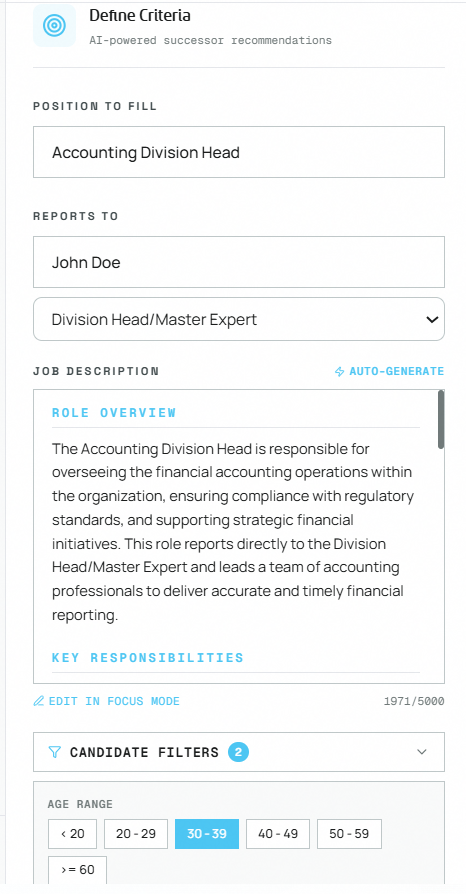
Note: The Generate Match button remains disabled until the Job Description field contains at least 10 characters.
💡 Tip: The more specific the job description, the more accurate the ranking. If you are editing a generated one, add concrete responsibilities, required qualifications and domain keywords.
Step 3 — Compare with Workable (Optional)
Below the job description, the Compare with Workable box scores the people who have already applied through your ATS against the same job description, and shows them in a second column beside your internal shortlist.
| What | How it works |
|---|---|
| Vacancy already selected | The vacancy you chose in Step 1 is added automatically. |
| Adding more | Tick up to 5 vacancies in total. Useful when the same job is posted in several regions, or as both a contract and a permanent role. |
| Suggestions | Three vacancies are always suggested for the position you typed. Ones the system is confident about are offered normally; ones it is not confident about are still shown but labelled as weak matches, so you can see it looked rather than guessing whether it did. |
| Removing one | Click the small × on any selected vacancy chip. |
| Status line | Tells you how many applicants can currently be ranked. Profiles are fetched one at a time against a shared rate limit, so a vacancy may still be filling in — the line says so rather than quietly showing you a partial pool. |
Somebody who applied to several of the vacancies you selected is only ever ranked once, and their card shows which vacancy they applied to. Each selected vacancy is also guaranteed a share of the evaluation, so a vacancy with 900 applicants cannot crowd out one with 12.
Note: This section only appears when the Workable integration is switched on for your organization.
Step 4 — Apply Candidate Filters (Optional)
Click the Filters section to expand optional filters that narrow the candidate pool before scoring:
| Filter | Description |
|---|---|
| Age Range | Select one or more decade buckets (e.g., 30 – 39, 40 – 49). |
| Job Layer | Restrict candidates to specific seniority levels (e.g., Section Head, Department Head). |
| Min Tenure | Only include employees with at least this many years of service. |
| Max Tenure | Only include employees with at most this many years of service. |
Filters are combined — for example, selecting Layer = Department Head and Min Tenure = 5 will only evaluate Department Heads with 5 or more years at the company.
💡 Tip: Leave filters blank to evaluate your entire eligible talent pool. Filtering too aggressively on a small organization may result in too few candidates.
Step 5 — Generate Match
Click the Generate Match button at the bottom of the form. The button is enabled only when all required fields are filled.
A loading indicator appears while the engine is running ("Matching Talent..."). This typically takes a few seconds.
Reading the Results
Results appear in the right panel after matching completes.
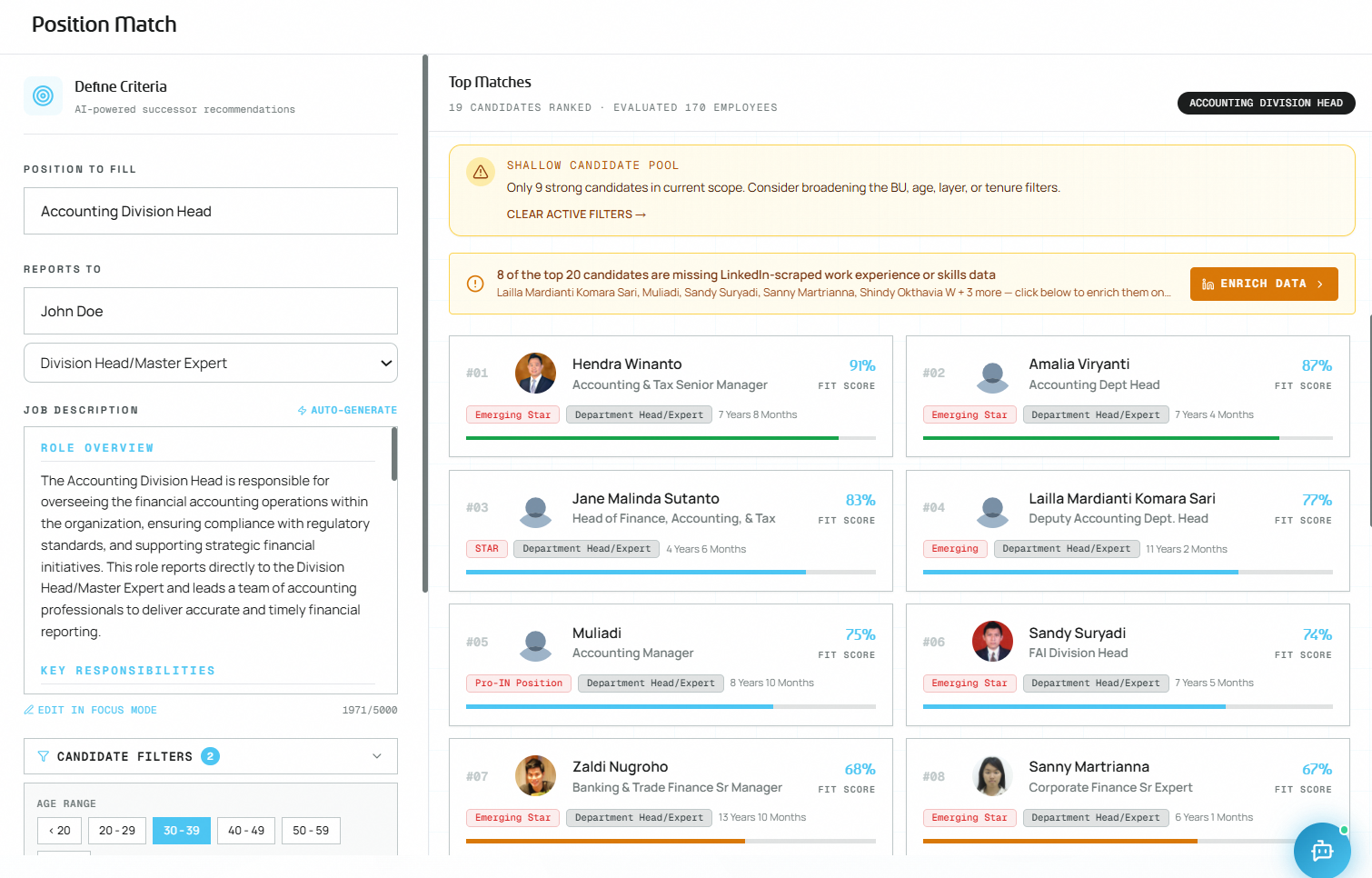
Results Header
| Element | What it shows |
|---|---|
| Top Matches | Up to 20 best-fit candidates returned by the AI |
| Candidates ranked / evaluated | How many candidates were returned vs. the total pool that was scored |
| Position tag | The target position name shown as a label |
Pool Quality Warning
If the AI determines that fewer than 5 candidates scored 60% or above, a warning banner appears at the top of the results. This usually means the internal talent pool does not have strong matches for the role, and you may want to widen your filters or reconsider the position requirements.
Workable Applicants
When you selected vacancies in Step 3, a second column shows the ATS applicants ranked against the same job description, with a count of how many of them could be scored.
External scores are not directly comparable to internal ones, and it is important to know why. For an employee, TalentForge holds a full record: performance history, talent class, layer, tenure, certifications. For an applicant it holds whatever they put on their application. Where an applicant has no skills and no prior roles on file, their score is capped at 60 and marked as such — that is a statement about how little we know, not about the person. Applicants with nothing at all to score are listed separately rather than given a low score.
Recommendation Narrative
Below both columns, TalentForge writes a short comparison of your top 5 internal candidates against the top 5 applicants, ending in concrete next steps — who to interview, who to ask for more information, what to verify.
It refers to people by their position in the list ("Internal #1", "External #3"), which the page turns back into names and photos for you. It is also told about the score cap above, so it weighs an applicant on what they show rather than penalising them for the gaps in our data.
The narrative is written once for a given comparison and reused, so reopening the same results is instant. If you have all-business-unit access you can click Regenerate to have it rewritten.
Note: This replaces the older Recommended Candidates panel, where you dragged internal candidates into a saved shortlist. Lists saved in that panel are no longer shown.
Candidate Cards
Each candidate is shown as a card in a two-column grid:
| Element | What it shows |
|---|---|
| Rank | Position in the AI-ranked list (#01, #02, etc.) |
| Avatar | Photo or initials |
| Name & current position | Employee's name and their current job title |
| Fit Score | Overall match percentage |
| Match bar | Visual indicator of the fit score |
Click any card to open the candidate's detail view.
Candidate Detail View
Clicking a candidate card opens a full detail panel on the right side.
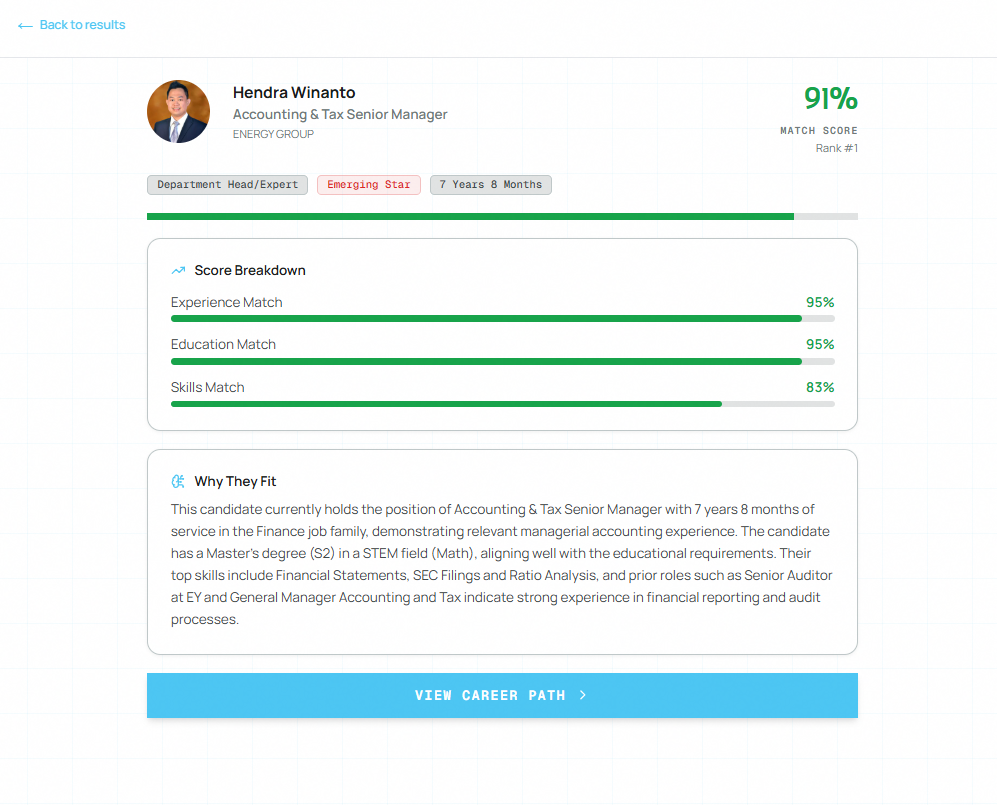
Score Breakdown
| Score | What it measures |
|---|---|
| Overall Match Score | The combined AI-assessed fit percentage |
| Experience Match | How closely the candidate's prior roles and job history align with the target position |
| Education Match | Whether the candidate's degree level and field are appropriate for the role |
| Skills Match | How many of the role's required skills the candidate already holds (shown when LinkedIn skill data is available) |
Interpreting the Overall Score:
| Score | Meaning |
|---|---|
| 80–100% | Excellent fit — minimal gap between candidate profile and role requirements |
| 60–79% | Strong candidate — specific gaps may exist; review "Why They Fit" for details |
| 40–59% | Moderate fit — notable development needed before the employee is competitive for this role |
| Below 40% | Poor fit — significant preparation required |
Why They Fit
The Why They Fit section shows the AI's written rationale for the score — explaining which aspects of the candidate's background make them a good (or partial) match for the role. Read this section to understand the reasoning beyond the numbers.
Badges
Below the score, badges show the candidate's current:
- Job layer (e.g., Section Head)
- Talent class (e.g., STAR Leaders, Growing Talent)
- Years of service
View Career Path
Click View Career Path to open the candidate's full Career Navigator page. The page opens pre-loaded with the position match fit scores so you can see the full career path in context of the target role.
History Panel
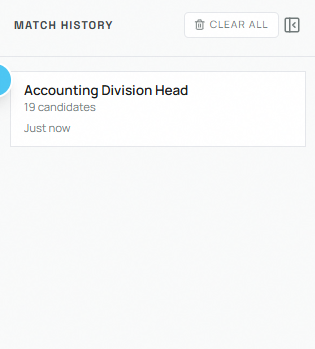
The History sidebar on the left stores your last 20 position match searches. Each entry shows the position name and timestamp.
| Action | How to use it |
|---|---|
| Restore a search | Click any history entry to reload the form and results from that session |
| Delete one entry | Click the trash icon on a history row |
| Clear all history | Click the Clear All button at the bottom of the history panel |
| Toggle sidebar | Click the panel icon at the top-left to collapse/expand the history sidebar |
History is saved locally in your browser — it is not shared with other users.
Business Unit Diversity
If your account has access to multiple business units, the engine automatically prevents any single BU from dominating the top 10 results. No more than 4 candidates from the same BU will appear in the top 10 slots, ensuring the results represent talent across your full scope.
LinkedIn Data Notice
The system shows a banner if a candidate's profile is missing LinkedIn-sourced skills or work experience. Skills Match scores and keyword overlap accuracy improve significantly when LinkedIn data is available. Use the Data Enrichment module to import this data for candidates whose profiles are incomplete.
Layer Reference
| Layer | Seniority |
|---|---|
| Staff | 1 (entry level) |
| Team Leader / Specialist | 2 |
| Section Head / Sr. Specialist | 3 |
| Department Head / Expert | 4 |
| Division Head / Master Expert | 5 |
| BU / SU Head | 6 |
| Director | 7 |
| C-Level | 8 |
| President Director / CEO | 9 |
| Board Commissioner | 10 (highest) |
Common Mistakes to Avoid
- Using a vague job description — Short or generic JDs (e.g., "Manage finance") produce low-quality rankings. Add specific responsibilities, required qualifications, and domain keywords.
- Over-filtering the candidate pool — Setting both layer and tenure filters on a small BU may return too few candidates for the AI to produce a meaningful ranking.
- Ignoring the pool quality warning — A warning banner means the match quality is low. Consider relaxing filters or adjusting the job description before acting on the results.
- Not checking "Why They Fit" — The score alone does not tell the full story. Always read the AI rationale before shortlisting a candidate.
- Reading a capped external score as a weak candidate — An applicant marked as having limited data scored at most 60 because their application was thin, not because they are a poor fit. Open their Workable profile before ruling them out.
- Selecting five unrelated vacancies — Each one takes a guaranteed share of the evaluation, so padding the selection with irrelevant vacancies spends part of the shortlist on applicants for a different job.