Home Dashboard
The Home Dashboard is your starting point every day. It gives you a real-time snapshot of workforce health across your Business Units.
Reading Your KPIs
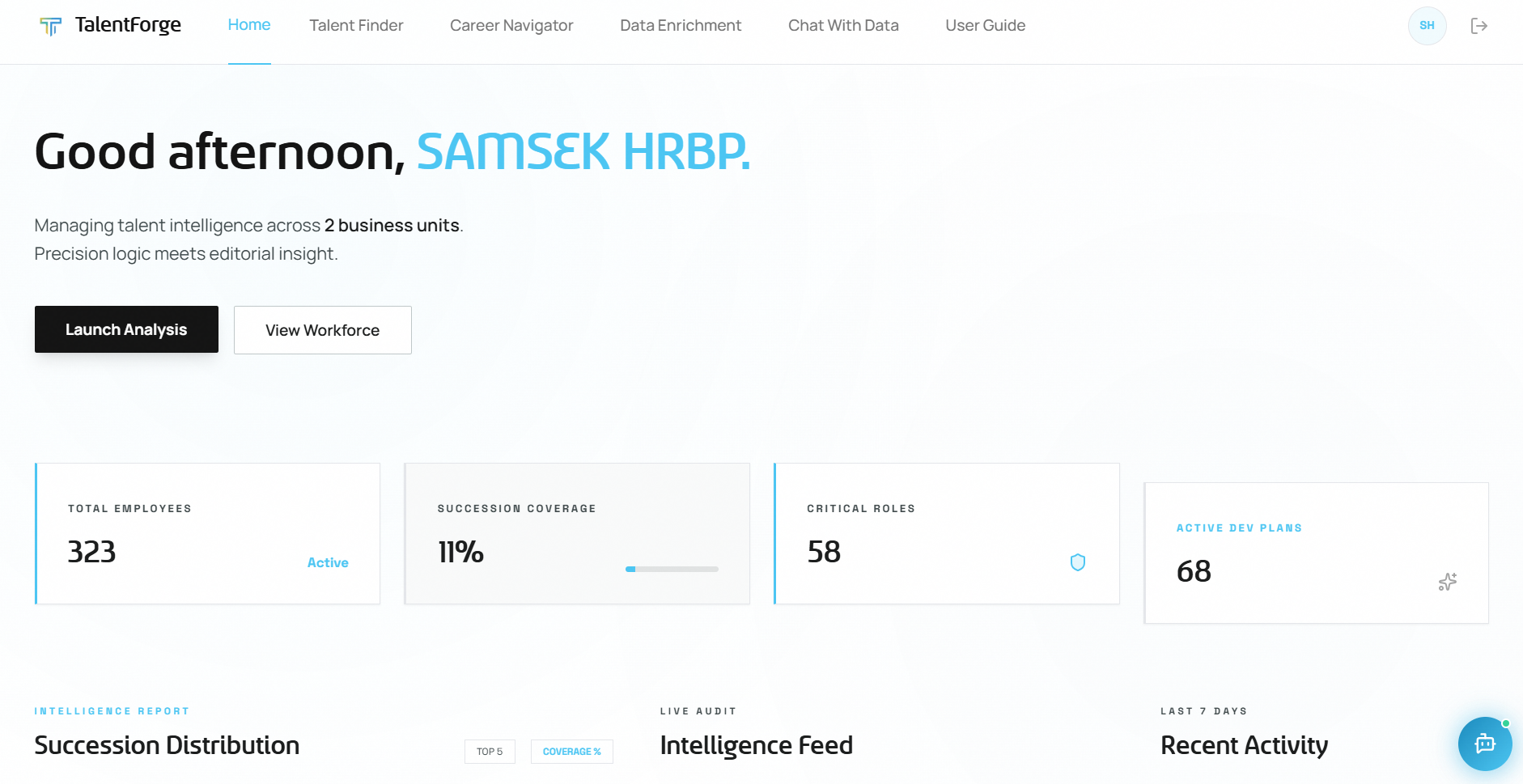
Four metric tiles across the top give you the big picture at a glance:
| Tile | What it means |
|---|---|
| Total Employees | Current headcount of active employees in your BUs. The percentage badge shows growth since the last period. |
| Succession Coverage | Proportion of key positions that have at least one successor assigned. The progress bar fills accordingly. Aim for 100%. |
| Critical Roles | Number of employees tagged as filling a critical role with no succession plan. A high number = continuity risk. |
| Active Dev Plans | Total development plans currently in "Active" status across your BUs. |
⚠️ Warning: A low Succession Coverage percentage combined with a high Critical Roles count signals significant continuity risk. Use these numbers as your weekly action starter.
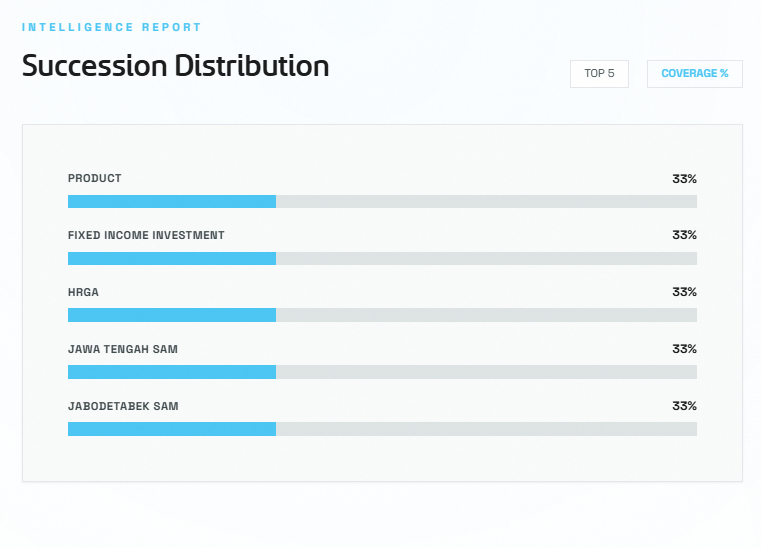
Succession Coverage Chart
Below the KPIs, the Succession Coverage chart breaks down coverage by your top departments.
- Each department shows two bars side by side:
- Faint bar = total positions in the department
- Solid bar = positions with at least one successor assigned
- A short solid bar compared to the faint bar means that department has significant succession gaps.
Intelligence Feed & Recent Activity
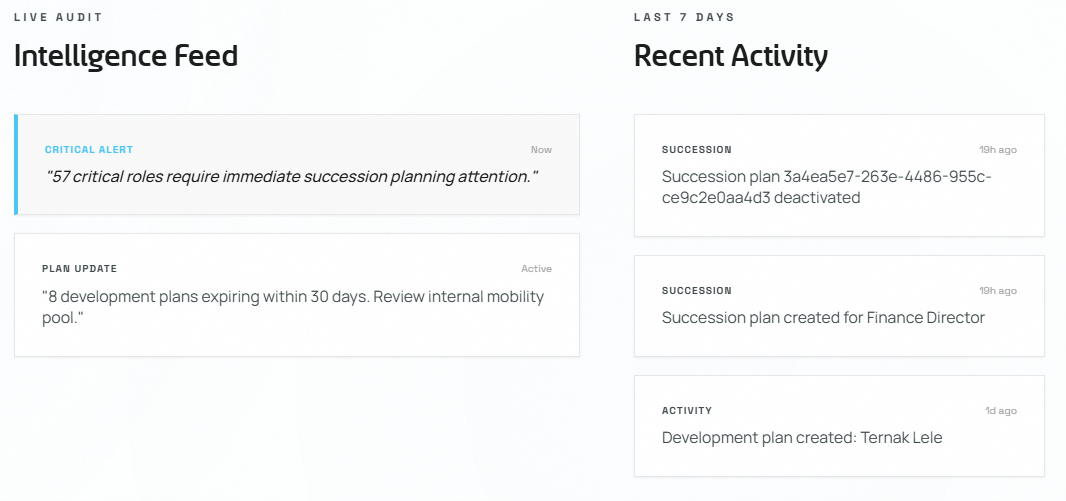
The right side of the dashboard features two important panels:
Intelligence Feed
The Alerts section surfaces risks automatically:
- Critical Roles (no successor): Employees tagged as critical with no succession plan — action needed.
- Expiring Dev Plans (next 30 days): Active development plans approaching their end date.
Recent Activity
Shows the most recent actions taken across your BUs, ordered newest first. Each entry shows:
- An activity type badge (e.g., "Career Generation", "Plan Update", "Sentiment Hub")
- A relative timestamp ("2m ago", "1h ago")
- A description of what happened
Use the feed to stay aware of activity across your team and to verify that bulk imports or AI generations completed successfully.
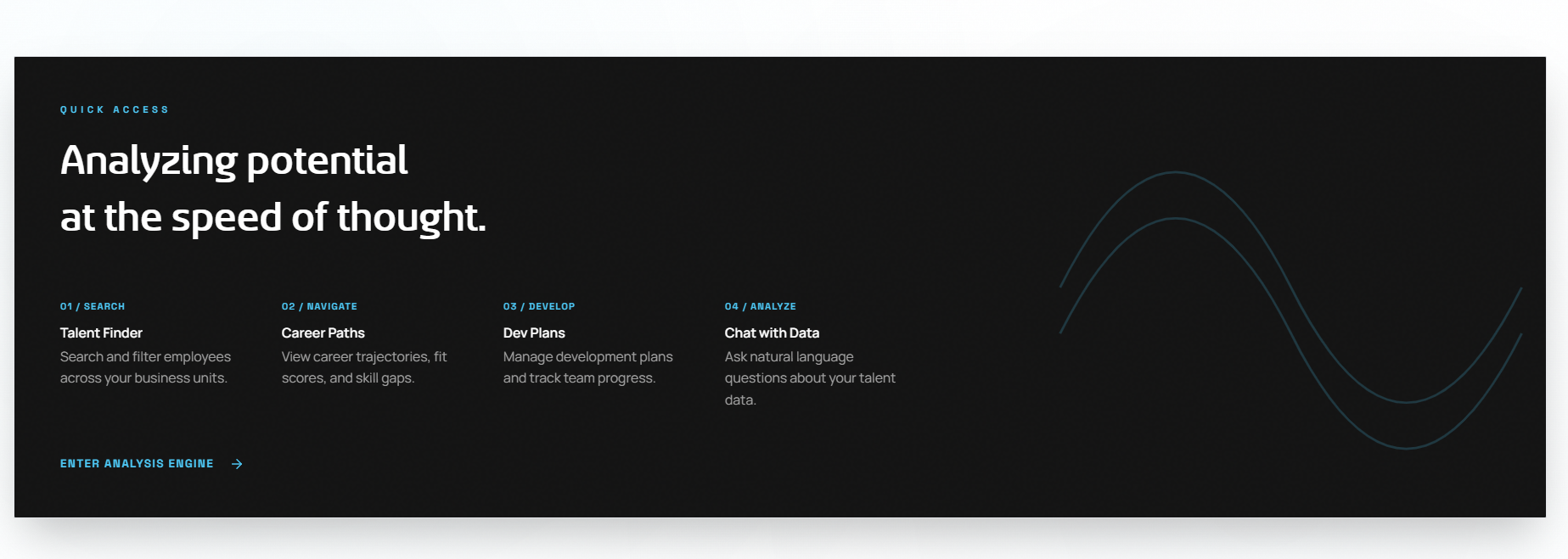
Quick Access Cards
At the bottom of the dashboard, Quick Access cards provide one-click shortcuts to:
- Talent Finder — jump to the employee directory
- Career Navigator — open the career path explorer
- Chat with Data — start a new AI conversation