Data Enrichment
Data Enrichment lets you pull LinkedIn profile data — work history, certifications, courses, and language skills — into TalentForge for a single employee. Once scraped and confirmed, the data feeds directly into Career Navigator's page.
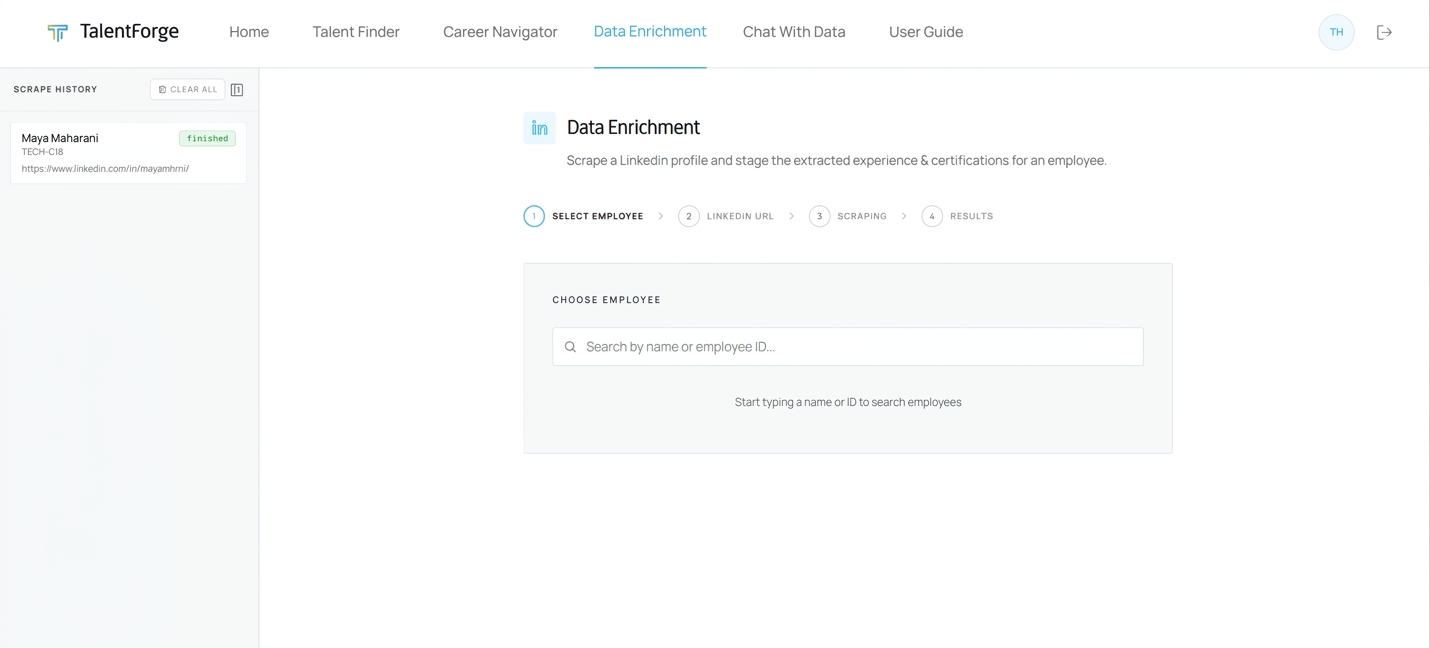
How It Works
Data Enrichment is a four-step wizard:
| Step | What happens |
|---|---|
| 1 — Select Employee | Search for the employee whose profile you want to enrich |
| 2 — LinkedIn URL | Paste the employee's LinkedIn profile URL |
| 3 — Scraping | TalentForge sends the URL for scraping (1–3 minutes) |
| 4 — Results | The scraped work experience and skills are staged and ready to review |
The Scrape History panel on the left tracks every individual scrape you've run, so you can re-open past results at any time without re-scraping.
Scrape History Panel
The collapsible panel on the left side shows all previous individual scrapes for your session.
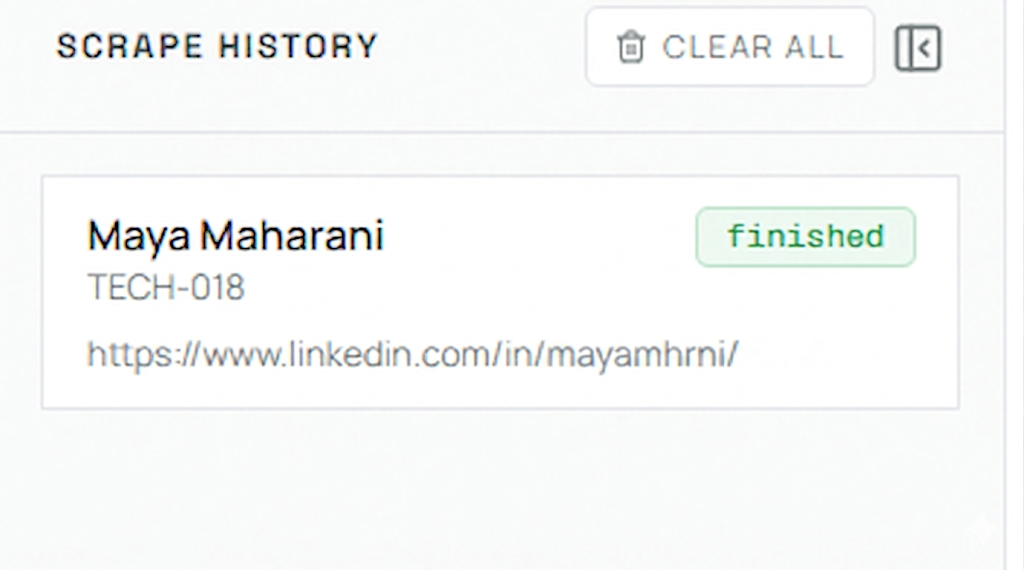
| Element | Description |
|---|---|
| Employee name | The name of the enriched employee |
| Employee ID | Displayed below the name in smaller text |
| Status badge | finished (green) — scrape completed successfully · failed (red) — scrape could not retrieve the profile · submitted (gray) — job is still running |
| LinkedIn URL | The URL that was submitted |
Actions available:
- Click any history entry to reload that result directly in the main panel — no need to re-scrape.
- Clear All (top-right of the panel) — removes all history entries. This only clears the in-session log; it does not delete any data already saved to BigQuery.
- Collapse/Expand — click the panel toggle icon to hide the history sidebar and give the wizard more space.
Step 1 — Select Employee
- Navigate to Data Enrichment from the top navigation bar.
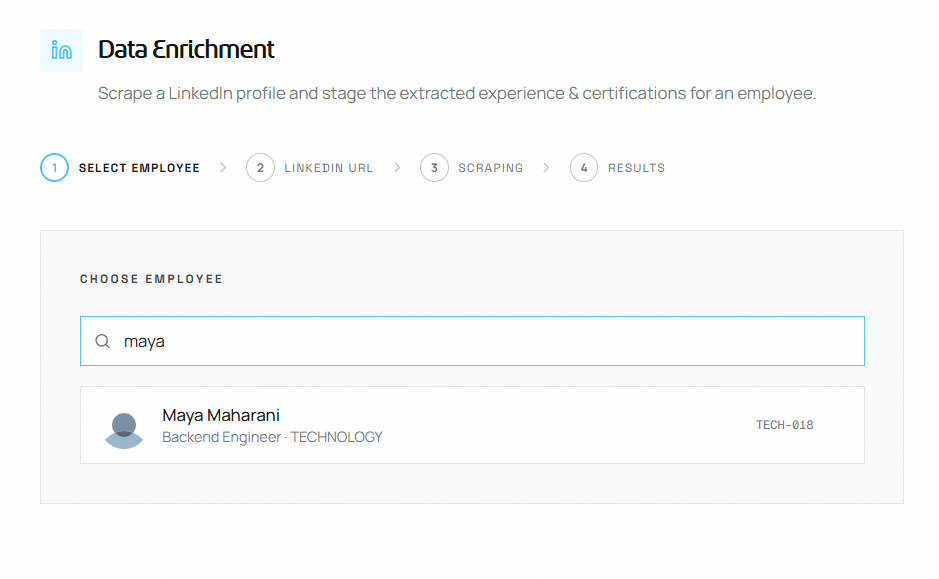
- Type the employee's name or employee ID into the search box.
- Results appear as you type — each entry shows the employee's name, position, business unit, and profile photo (if available).
- Click the correct employee to select them and move to Step 2.
💡 Tip: You can only enrich employees within your assigned Business Units. Employees from other BUs will not appear in search results.
Common mistakes to avoid:
- Searching by job title — the search field matches on name and employee ID only.
Step 2 — Enter LinkedIn URL
After selecting an employee, you'll see a confirmation card with their name, position, and ID. Below it is the URL input field.
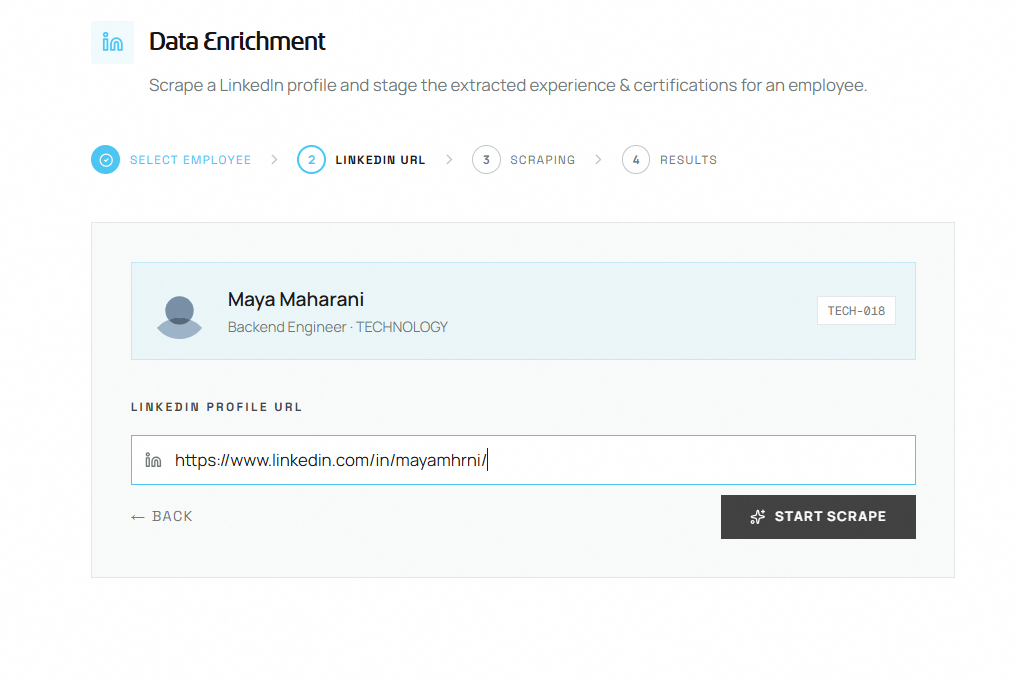
- Paste the employee's full LinkedIn profile URL into the field.
- Accepted formats:
https://www.linkedin.com/in/username/orhttps://www.linkedin.com/pub/...
- Accepted formats:
- Press Enter or click Start Scrape to submit the job.
- Click ← Back to return to employee selection.
URL validation rules:
- Must start with
https:// - Must contain
linkedin.com/in/orlinkedin.com/pub/ - The field will show an inline error message if the URL is invalid
⚠️ Warning: Make sure you paste the correct employee's LinkedIn URL. The scraper will return whatever profile is at that URL — it does not verify that the profile belongs to the selected employee.
Common mistakes to avoid:
- Pasting a LinkedIn company page or post URL instead of a personal profile URL.
- Pasting a shortened or redirect URL — always use the full
https://www.linkedin.com/in/...format. - Submitting a profile that is set to private — private profiles will be scraped but return an error at Step 4 with the message "LinkedIn profile is private or restricted."
Step 3 — Scraping in Progress
Once you click Start Scrape, TalentForge sends the LinkedIn URL to API. This step is fully automated — you just wait.
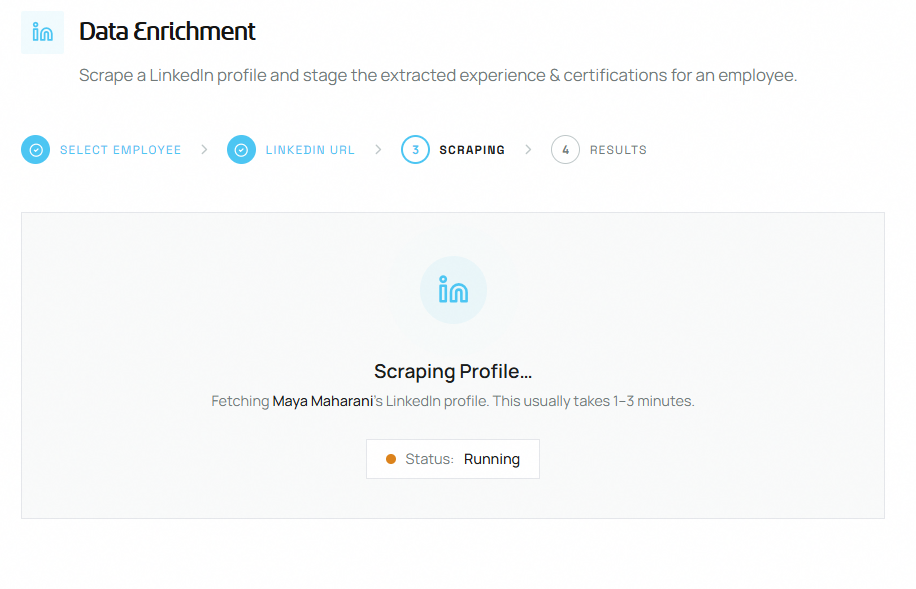
- A pulsing LinkedIn icon and status badge confirm the job is running.
- The Status badge updates live:
running→ready. - Scraping typically takes 1–3 minutes.
- TalentForge polls the scrape service every 10 seconds — you do not need to refresh the page.
If the scrape fails:
| Error message | Cause | What to do |
|---|---|---|
| "LinkedIn profile is private or restricted" | The profile is private or inaccessible | Ask the employee to make their profile public, then retry |
| "LinkedIn URL is invalid or profile was not found" | The URL is wrong or the account was deleted | Verify the correct URL and retry |
| "Scrape timed out" | The job is still running in the background | Wait a few minutes and re-open the result from Scrape History |
| "Scrape failed / stopped" | API service error | Click Try Again to resubmit |
💡 Tip: If the page shows a timeout error, don't resubmit immediately. Check Scrape History — the job may still complete in the background and appear there when finished.
Step 4 — Results
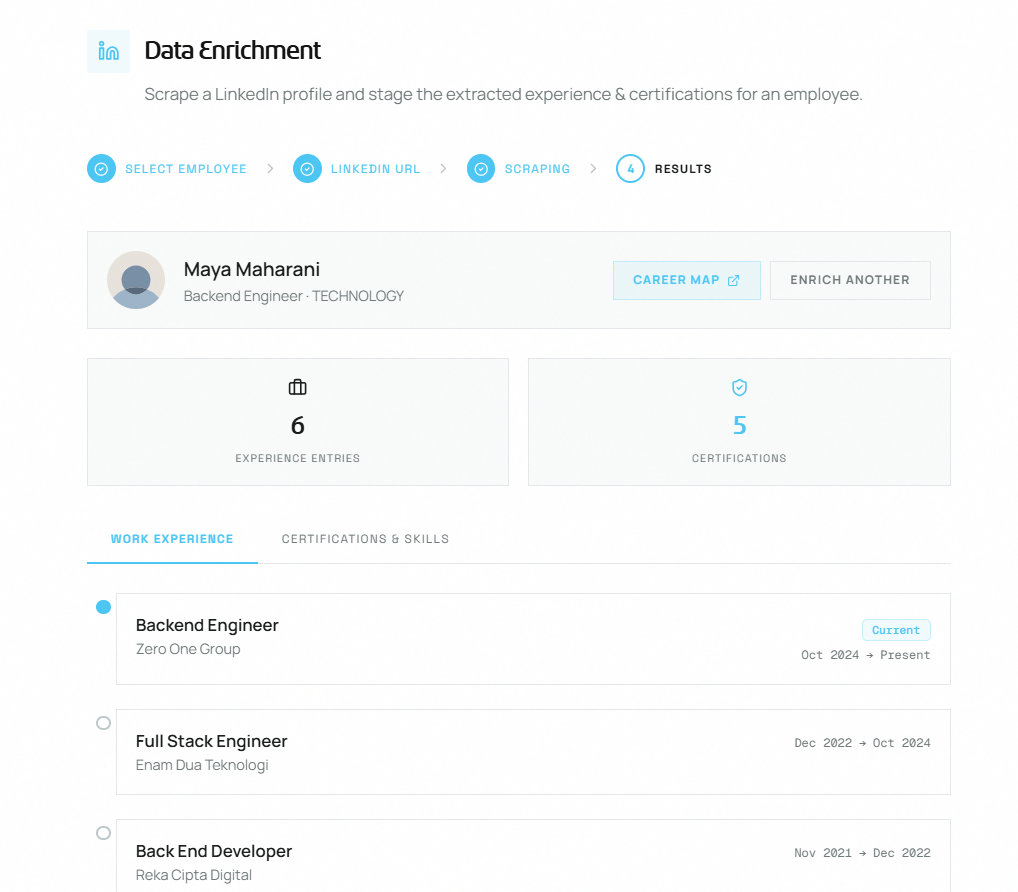
Work Experience tab
Displays the employee's full professional history, sorted by most recent first. Each entry shows:
| Field | Description |
|---|---|
| Job Title | The role held at that company |
| Company | Organization name |
| Date Range | Start and end month/year, or "→ Present" for the current role |
Work experience entries are used as the Experience Match component of the Career Navigator fit score. Richer work history leads to more accurate career path recommendations.
Skills tab
Displays LinkedIn-sourced skills, grouped into three categories:
| Category | Badge Color | What it includes |
|---|---|---|
| Certifications & Licenses | Indigo | Professional certifications (e.g., CFA, PMP) |
| Courses | Green | Completed online or offline courses |
| Languages | Amber | Spoken/written language proficiencies |
Skills feed into the Skills Match component of the Career Navigator fit score and appear in the Skills to Develop section with checkmarks showing which required skills are already held.
After reviewing results
Once you're satisfied with the staged data:
- The data is already saved to the staging BigQuery tables — no separate confirm step is needed.
- Navigate to Career Navigator and open this employee's profile.
- Click Recalculate Model on the career path graph to regenerate paths using the new data.
⚠️ Warning: Scraped data supplements — it does not overwrite — existing internal HR records. Internal training records from SAP HR remain intact alongside the LinkedIn-sourced data.
Impact on Career Navigator
Enriching an employee's profile directly improves the quality of AI-generated outputs in Career Navigator:
| Career Navigator Feature | How Data Enrichment improves it |
|---|---|
| Fit Score — Experience Match (40%) | More detailed work history → more accurate experience alignment |
| Fit Score — Skills Match (30%) | LinkedIn certifications fill gaps not covered by internal SAP records |
| Profile Photo | Avatar appears in Talent Finder, Career Navigator, and succession panels |
Common Mistakes to Avoid
- Re-scraping when not needed — if the employee is already in Scrape History with "finished" status, click the history entry to reload results instantly instead of starting a new scrape job.
- Scraping without recalculating — after enriching a profile, always click Recalculate Model in Career Navigator to apply the new data. Cached scores from before the scrape are not automatically updated.
- Assuming one scrape covers multiple employees — Data Enrichment runs one scrape per employee. For bulk scraping multiple employees at once, use the LinkedIn Scrape option in the Talent Finder bulk import modal.
- Ignoring failed scrapes — a "failed" badge in Scrape History usually means the LinkedIn URL is wrong or the profile is private. Check the URL and fix it before resubmitting.