Chat with Data
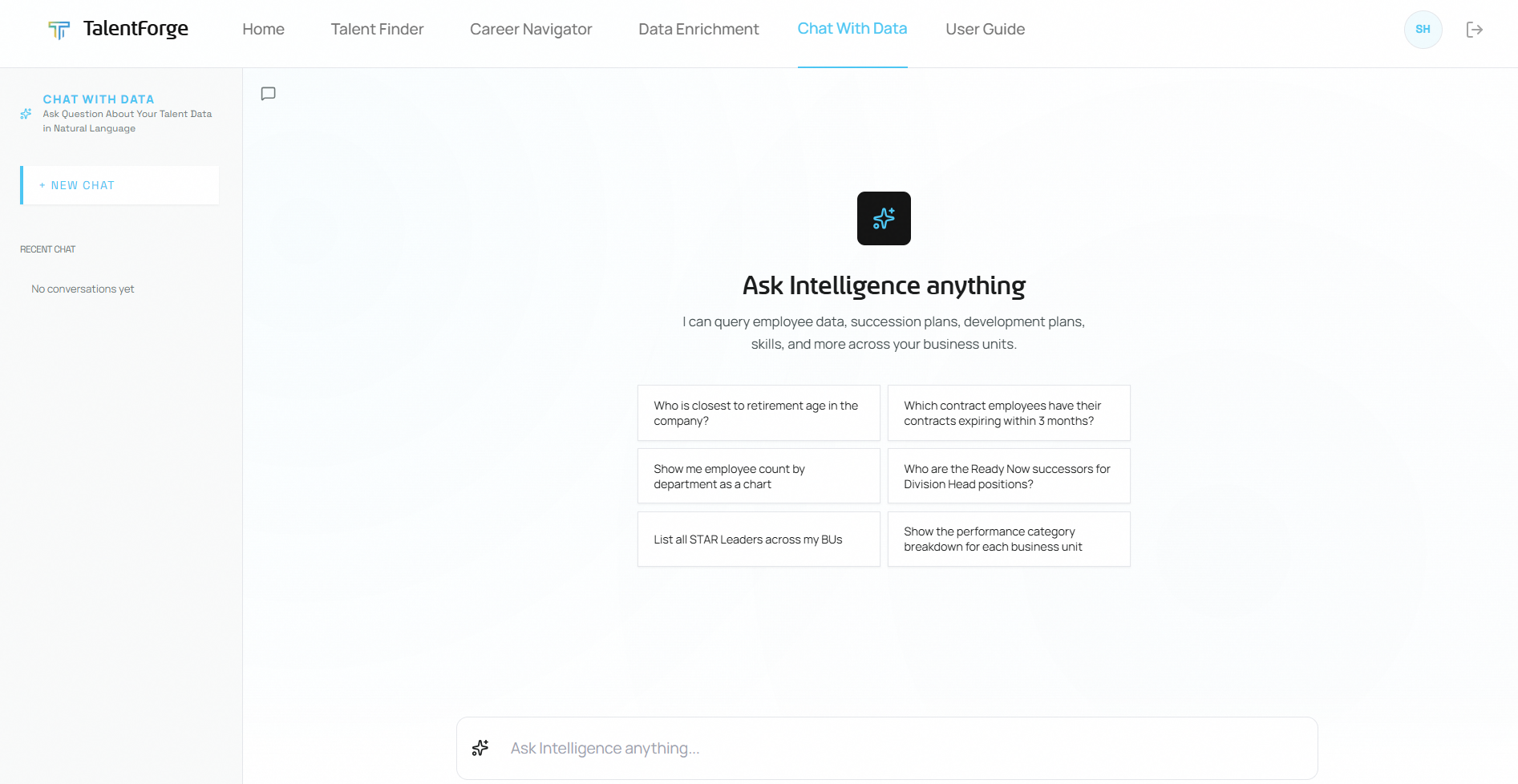
Chat with Data is your AI analyst. Ask questions about your workforce in natural language, and get instant answers with data tables and visualizations.
Starting a Conversation
- Open Chat With Data from the top navigation bar.
- You'll see the chat interface with a sidebar (left) showing your chat history and a main area (right) for the conversation.
- To start, either:
- Click one of the suggested question buttons (e.g., "Show me employee count by department as a chart")
- Type your own question in the "Ask Intelligence anything..." text box at the bottom and press Enter
💡 Tip: You can ask questions in English or Bahasa Indonesia — the AI responds in the same language you use.
Understanding the Response
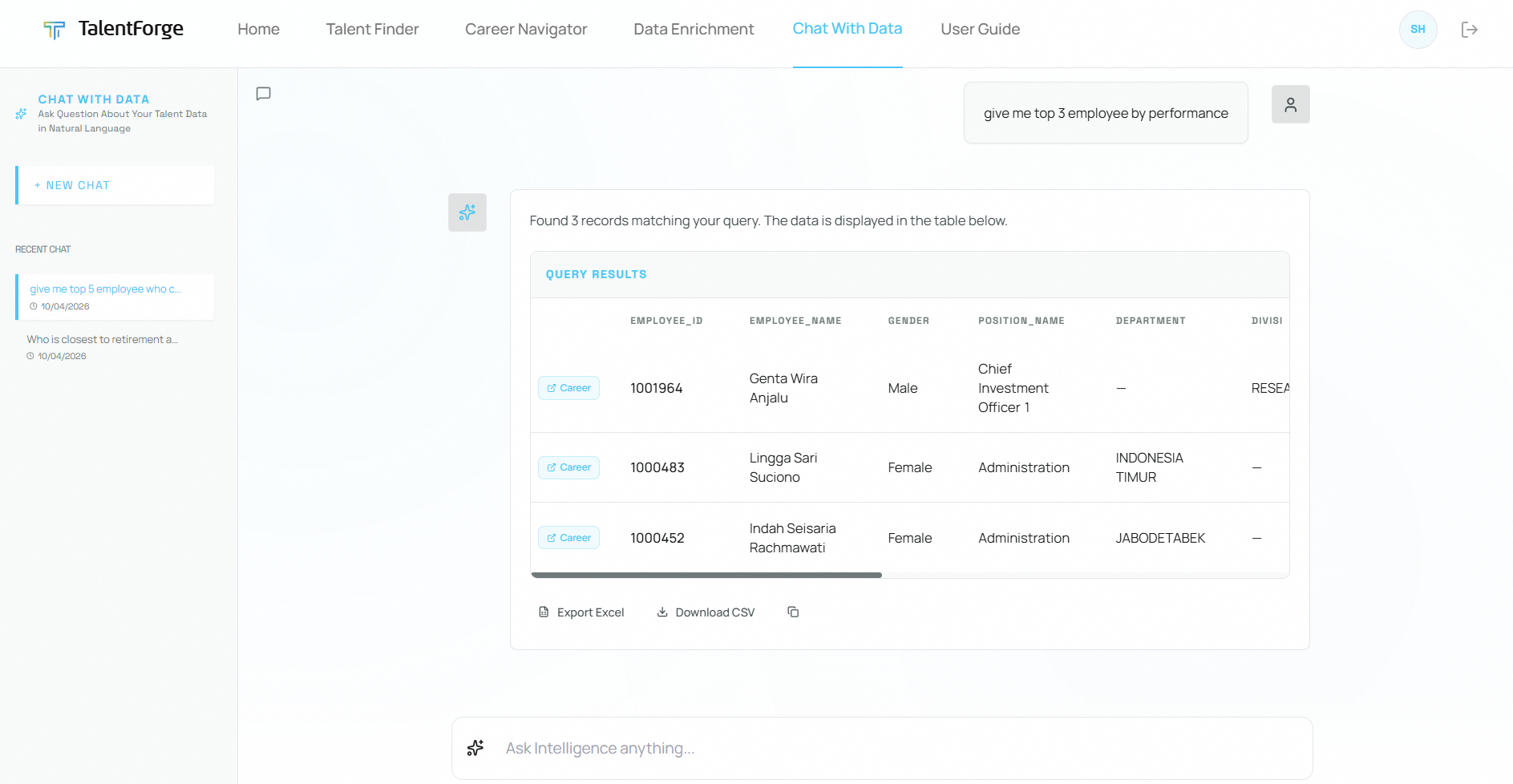
AI responses have up to three parts:
1. AI Summary
A natural-language paragraph at the top that highlights the key findings from your data. Important numbers are called out in the text.
2. Chart Visualization
When your question asks for a comparison or distribution, a horizontal bar chart appears showing:
- Category labels on the left
- Percentage values
- Absolute counts on the right
- An "Export Chart" button to save the visualization
3. Data Table
Below the summary (and chart, if present), a Query Results table shows the raw data:
- Column headers in uppercase (e.g.,
DEPARTMENT,EMPLOYEE_COUNT) - Paginated rows — click "Show 10 more" or "Show all" to expand
- Export Excel and Download CSV buttons below the table
Types of Questions You Can Ask
Works great:
- Headcount queries: "How many employees are in each department?"
- Succession coverage: "Which departments have the lowest succession coverage?"
- Development plans: "How many active development plans are expiring this month?"
- Skill analysis: "What are the most common skills in the Operations department?"
- Talent classification: "Show the talent class distribution for SINARMAS ASSET MANAGEMENT"
- Comparisons: "Compare employee count between SINARMAS ASSET MANAGEMENT and SINARMAS SEKURITAS"
- Charts: "Show me employee count by department as a chart"
Privacy-protected queries:
Questions that combine personal details (e.g., name + date of birth) receive a privacy-safe template response. This is a deliberate data protection feature, not a limitation.
💡 Tip: Start with the suggested questions if you're not sure what to ask — they're designed to showcase the most useful types of analysis.
Exporting Results
You have three export options for any chat response:
| Button | What it does |
|---|---|
| Export Excel | Downloads the query results as an .xlsx file |
| Download CSV | Downloads the query results as a .csv file |
| Export Chart | Downloads the chart visualization as an image |
| Copy icon (📋) | Copies the AI summary text to your clipboard |
💡 Tip: Excel exports are best for sharing with colleagues who need to work with the data. CSV exports are useful for importing into other tools.
Managing Chat History
- Each conversation appears in the sidebar on the left, showing the first question and a timestamp.
- Click any previous conversation to reload it.
- Click "+ New Chat" to start a fresh conversation.
- To delete a conversation, hover over it in the sidebar and click the trash icon.
Common mistakes to avoid:
- Asking very broad questions like "Tell me everything about my employees" — be specific to get useful results.
- Expecting real-time data from external systems — Chat queries the TalentForge database, which is updated via bulk imports and manual entries.
- Assuming chat remembers context across different conversations — each conversation is independent.