Career Navigator
Career Navigator lets you explore AI-generated career paths, fit scores, and development plans for individual employees.
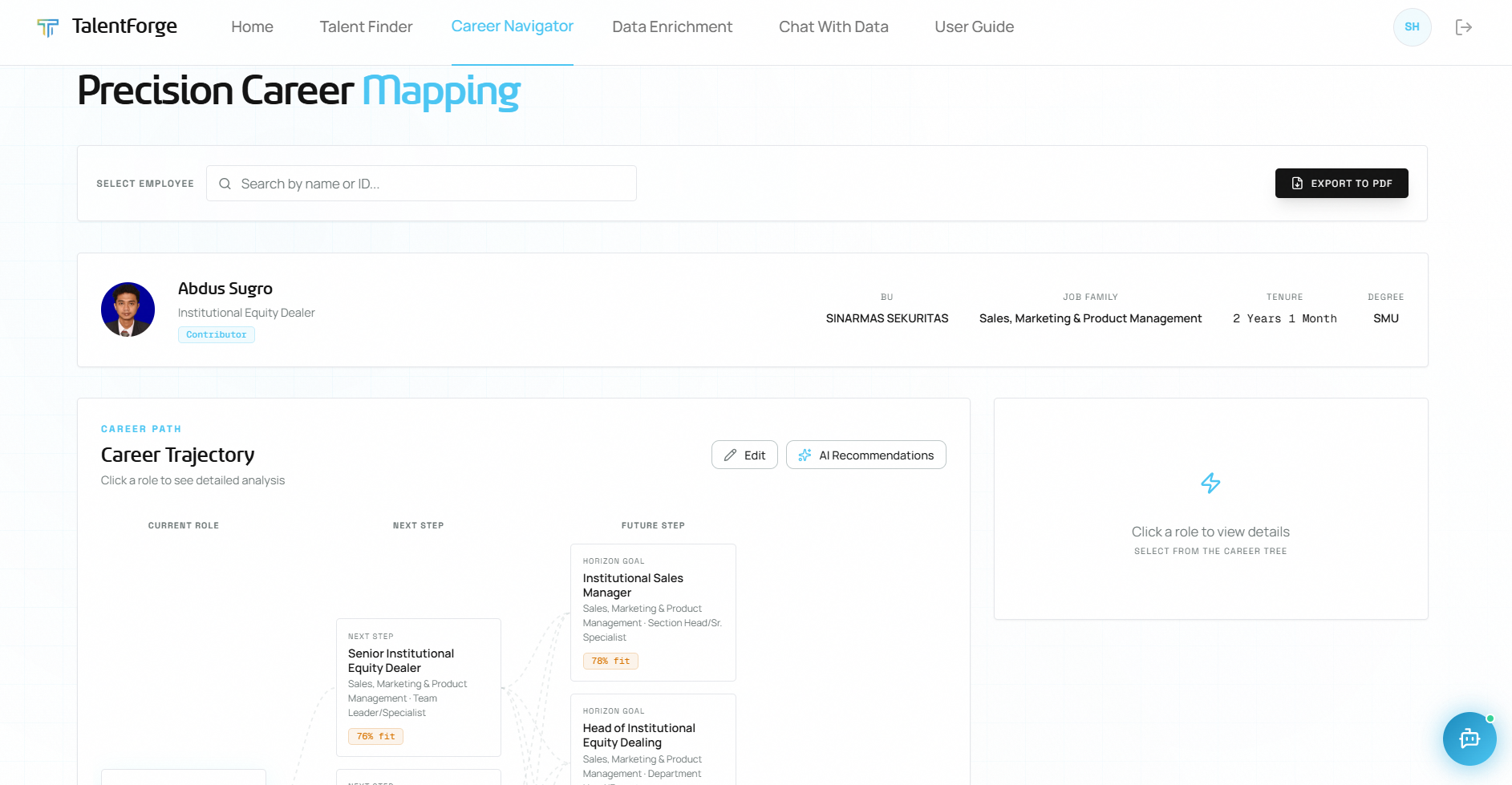
Finding an Employee
- Navigate to Career Navigator from the top navigation bar.
- On the landing page, type an employee's name in the search box.
- A dropdown of matching employees appears — click the correct person.
- Alternatively, click the Career Navigator link on any employee card in Talent Finder to go directly to their page.
Understanding the Career Path Graph
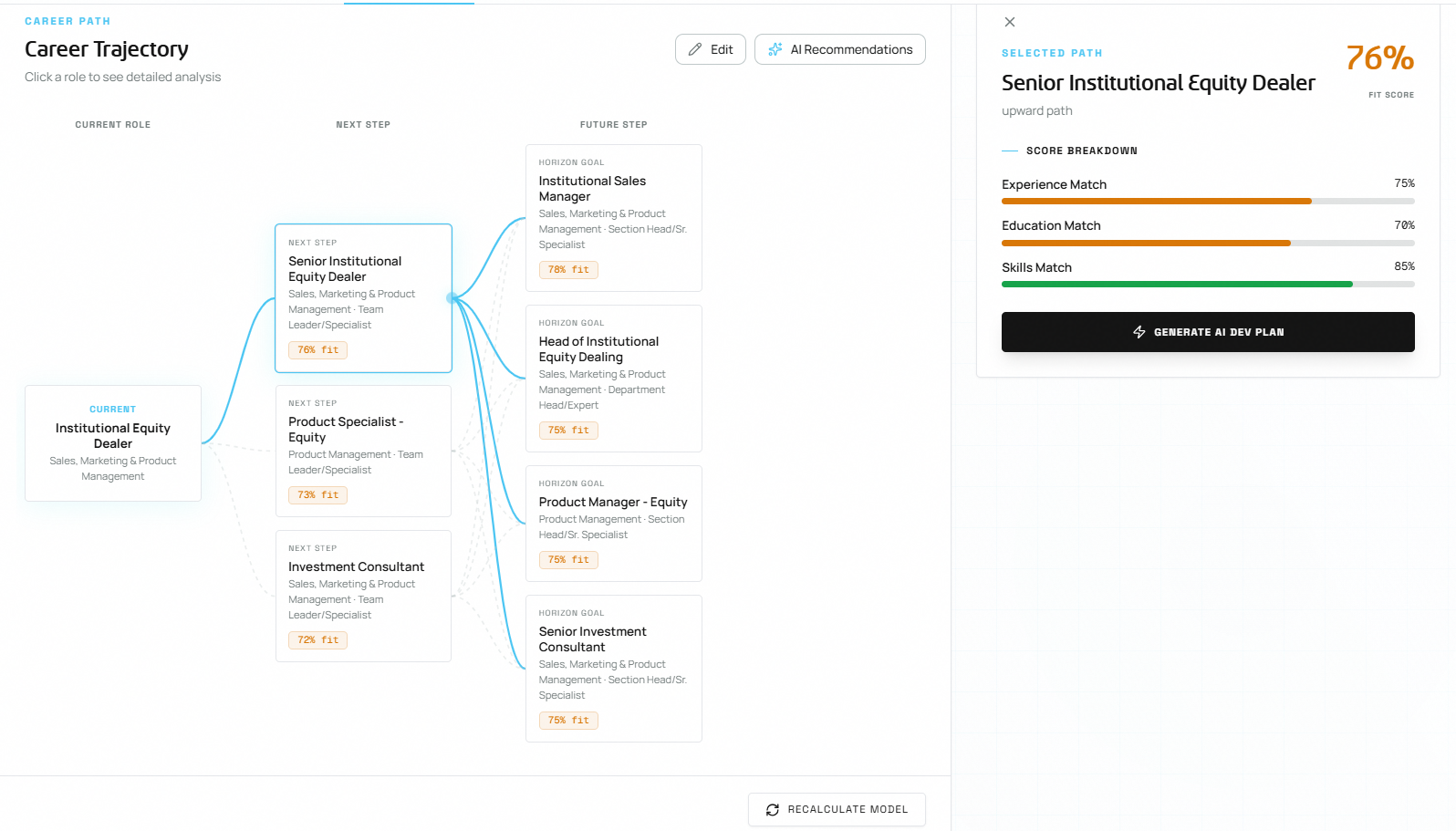
The career path graph is the centerpiece of the Career Navigator page. It maps out where an employee could realistically go next, based on their education, experience, and skills.
The graph has three columns:
| Column | What it shows |
|---|---|
| Current Role | The employee's current position — your starting point |
| Next Steps | Realistic next moves within 1–2 years |
| Future Steps | Longer-term destinations reachable from Step 1 |
How to interact:
- Click any Step 1 node to highlight it and see which Step 2 roles branch from it.
- The Role Detail panel on the right updates to show the fit score breakdown for the selected role.
- Click "Recalculate Model" at the bottom of the graph to force the AI to regenerate the career tree (useful after profile updates, criticality tags, or new skills imports).
💡 Tip: Career paths are cached for performance. The system only recalculates when data changes or when you manually click "Recalculate Model".
Reading a Fit Score
When you click a career path node, the Role Detail panel opens on the right showing an Overall Fit Score as a large percentage.
The Overall Fit Score is calculated from three components:
| Component | Weight | Based on |
|---|---|---|
| Experience Match | 40% | How closely the employee's past roles align with the target role |
| Education Match | 30% | Whether the degree level and field match the role's typical requirements |
| Skills Match | 30% | How many required skills the employee already holds |
Formula: (Experience × 0.40) + (Education × 0.30) + (Skills × 0.30)
What the score means:
| Score | Interpretation |
|---|---|
| 90–100% | Excellent candidate — minimal development needed |
| 70–89% | Strong candidate — check the Skills to Develop list for specific gaps |
| Below 70% | Significant preparation needed before the employee is competitive |
💡 Tip: Fit scores automatically update after profile tagging, bulk imports, or manual recalculation.
Career Gap Analysis
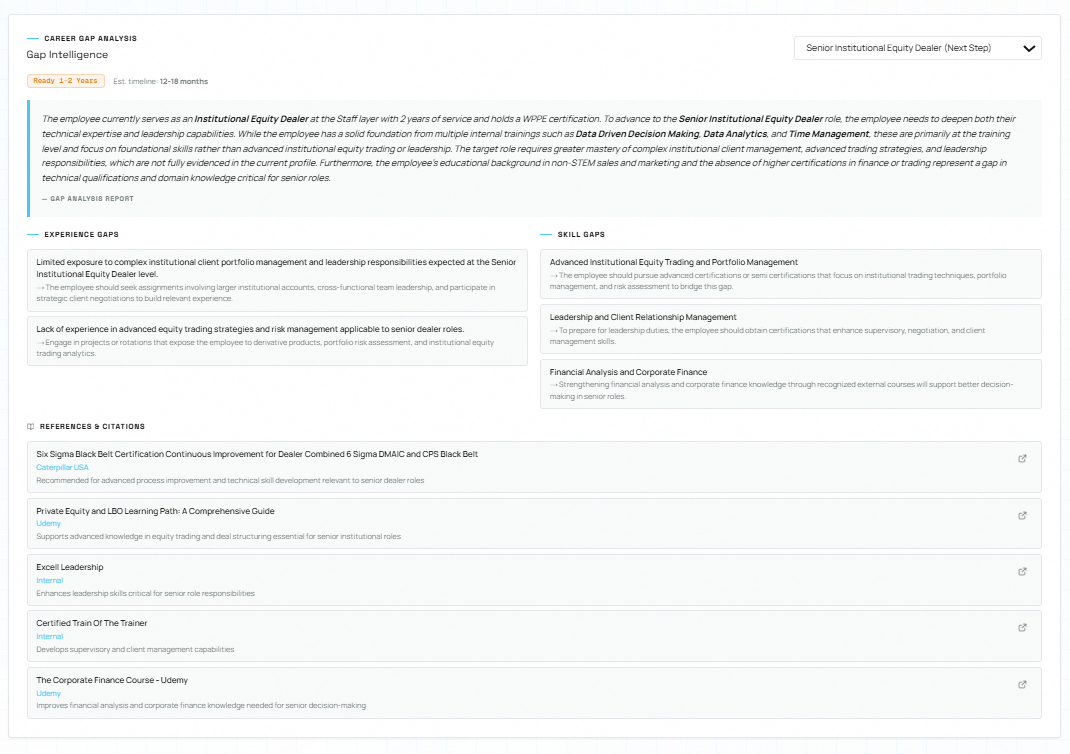
The Career Gap Analysis section provides a deep, AI-generated assessment of what an employee needs to transition into a specific target role.
How to use it
- Scroll down to the "Career Gap Analysis" section below the career path graph.
- Open the dropdown and select a target role — the dropdown lists all Next Step and Future Step roles from the career tree (e.g., "Senior Institutional Relationship Supervisor (Next Step)").
- The AI analyzes the employee's profile against the target role and generates a full report.
What the report shows
| Section | Description |
|---|---|
| Readiness Badge | A colored badge indicating how soon the employee could be ready — e.g., "Ready Now", "Ready 1-2 Years", or "Ready 2+ Years" |
| Estimated Timeline | A time estimate (e.g., "12-18 months") for the employee to close all gaps |
| Narrative | A detailed AI-written paragraph explaining the employee's current strengths, what's missing, and what actions to take |
| Experience Gaps | A list of specific experience areas the employee lacks, each with a concrete recommendation |
| Skill Gaps | A list of specific skills to develop, each with a recommendation and sometimes suggested courses |
| References & Citations | Training courses, certifications, and external resources cited in the analysis |
Reading experience gaps
Each experience gap card has two parts:
- The gap — what's missing (e.g., "Limited experience in managing large institutional accounts")
- The recommendation (marked with →) — what specific actions the employee should take
Reading skill gaps
Each skill gap shows:
- The skill name — what needs to be developed
- The recommendation (marked with →) — specific development actions, often naming actual courses or certifications
References & Citations
At the bottom, the report cites specific training programs and certifications:
- Course/certification name and provider
- Relevance explanation — why this resource was recommended
- External link (when available) — click the link icon to open in a new tab
💡 Tip: Use the Gap Analysis before creating a Development Plan — it tells you exactly what to include. Use the cited courses directly as development items.
⚠️ Warning: Gap Analysis results are cached. After updating an employee's profile or importing new data, click "Recalculate Model" on the career graph first, then re-select the target role to get fresh results.
Common mistakes to avoid:
- Forgetting to select a target role in the dropdown — the analysis won't run until you choose one.
- Skipping the Citations section — it often contains specific, actionable training recommendations.
Work Experience
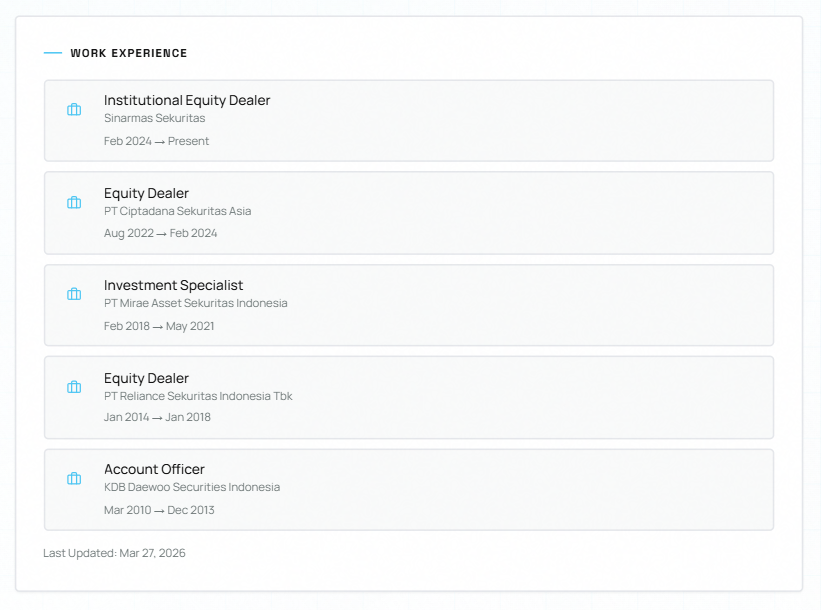
The Work Experience section displays the employee's professional history, sourced from their LinkedIn profile data.
Each experience entry includes:
- Job Title — the role the employee held
- Company — the organization name
- Date Range — formatted as "Jan 2020 → Aug 2022" (or "→ Present" for the current role)
💡 Tip: Work experience is one of the three components feeding into the Fit Score (Experience Match = 40% weight).
ℹ️ Note: If this section shows "No work experience data available", the employee's LinkedIn profile data hasn't been imported yet.
Internal Training & Skills
Internal Training & Certifications
The Internal Training & Certifications section shows training records from your organization's SAP HR system — formal, company-sponsored learning.
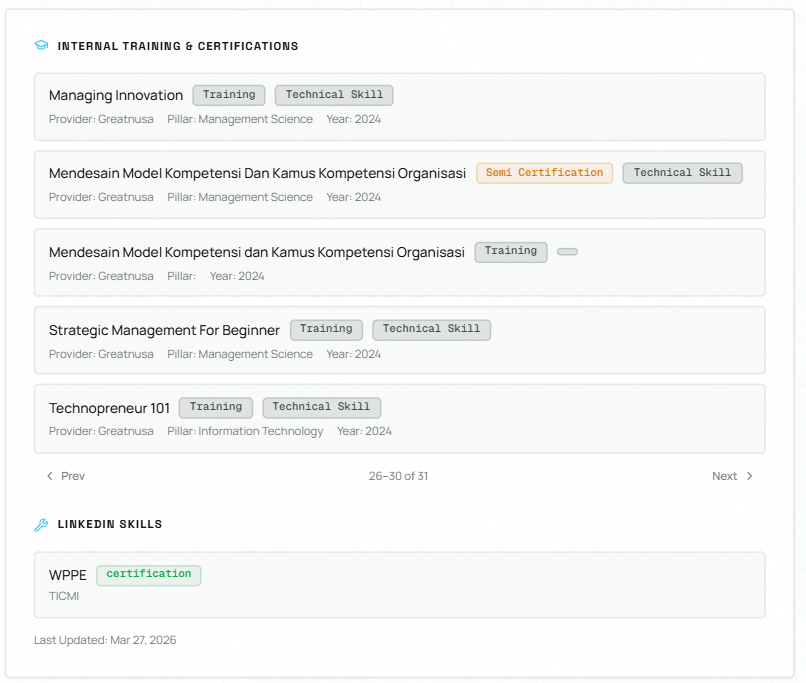
Each training entry is displayed as a card with:
| Field | Description |
|---|---|
| Training Name | Full title of the course or certification |
| Type Badge | Color-coded — Training (default), Certification (green), Semi Certification (amber), Workshop (indigo) |
| Category Badge | Classification — e.g., "Technical Skill", "Soft Skill", "Mandatory" |
| Provider | Training provider (e.g., Greatnusa, Kelas Work, PRASMUL ELI) |
| Pillar | Business pillar (e.g., Information Technology, Management Science) |
| Year | When the training was completed |
| Hours | Total learning hours |
| Cert Number | Certification ID (for certified trainings) |
Pagination
Records are paginated (5 per page). Use Prev and Next buttons to navigate. A counter shows your position (e.g., "1–5 of 50").
💡 Tip: Internal training records are a key input to the AI's Gap Analysis — the AI cross-references completed trainings against target role requirements.
LinkedIn Skills
The LinkedIn Skills section displays skills sourced from the employee's LinkedIn profile — certifications, courses, and language proficiencies.
Each skill shows:
| Field | Description |
|---|---|
| Skill Name | Name of the skill, certification, or course |
| Type Badge | Certification (green), Course (indigo), Language (muted) |
| Detail | Additional context (e.g., issuing organization, language proficiency level) |
LinkedIn skills feed into three platform features:
- Fit Score — Skills Match (30%): Compared against required skills for a target role
- Skills to Develop: Already-held skills appear with a checkmark; missing ones are flagged
- Gap Analysis: Referenced when determining skill gaps and recommending training
ℹ️ Note: When no LinkedIn skills and no internal training exist, the Fit Score formula adjusts to 50% Experience + 50% Education (instead of the standard 40/30/30 split).
Common mistakes to avoid:
- Assuming internal training and LinkedIn skills are the same — they come from different sources (SAP HR vs. LinkedIn).
- Ignoring the "No LinkedIn skills data available" message — this directly impacts Fit Score accuracy. Import skills via Bulk Import to improve AI recommendations.
Skills to Develop
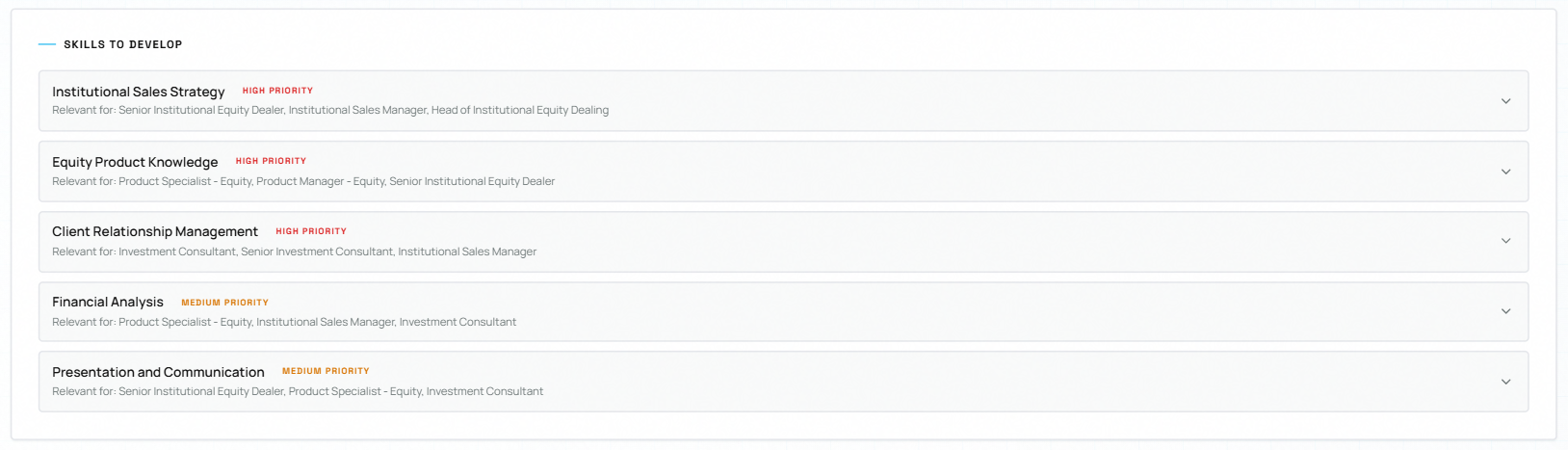
Below the Fit Score, the Skills to Develop list shows exactly what the employee needs to build for the selected role.
Each skill displays:
- A priority badge: 🔴 High Priority / ⚪ Medium Priority / 🔵 Low Priority
- The target role the skill is relevant for
- Click any skill to expand it for further details
💡 Tip: Use this list as your starting point when creating a Development Plan targeting this role.
Development Plans
Development plans track the specific actions an employee needs to take to reach a target role.
Viewing Plans
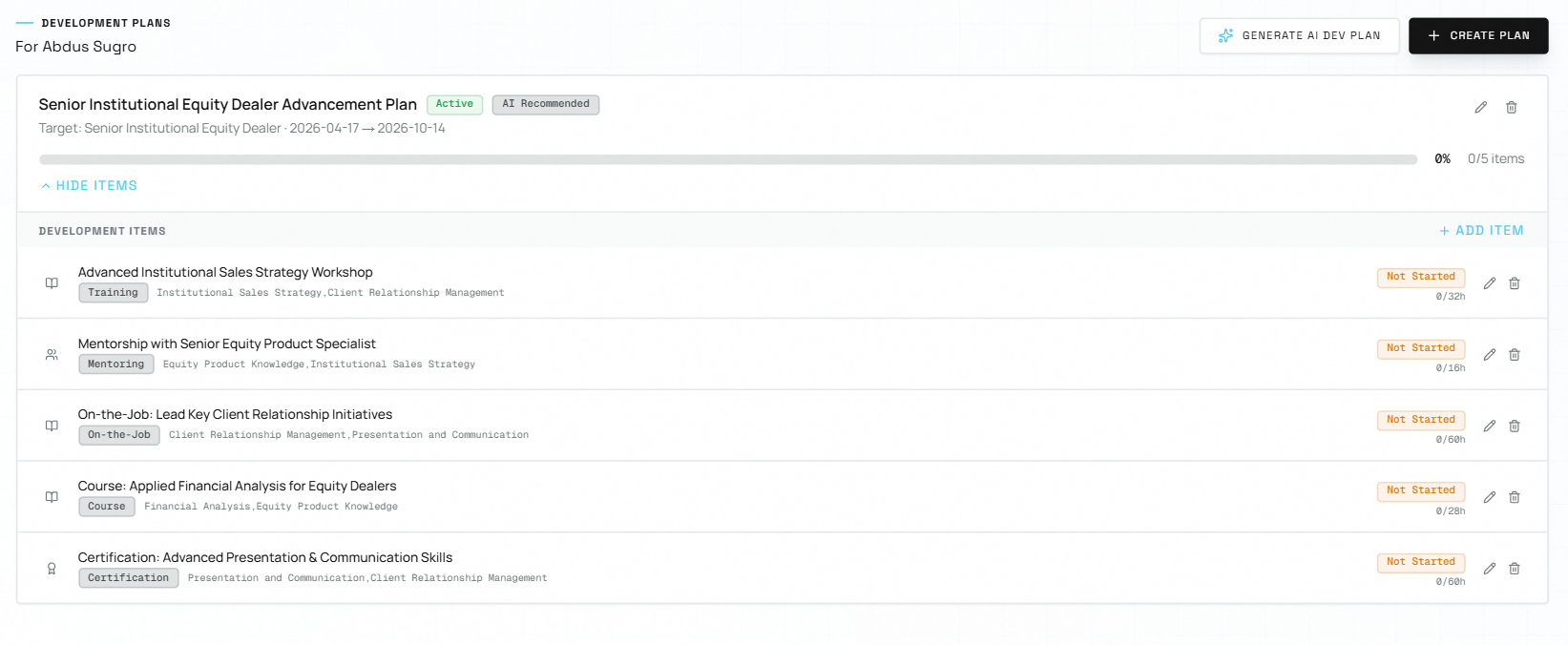
Plans are shown as expandable cards. Each card shows: plan title, status badge (green = Active, amber = On Hold, muted = Completed), target role, source, date range, days remaining, and a progress bar.
Creating a Plan Manually
- Click "Create Plan" above the plan list.
- Fill in the modal fields:
- Plan Title, Target Role, Status, Start Date, End Date, Source
- Add Development Items by clicking "+ Add Item":
- Item Title, Item Type (Course / Project / Certification / Mentoring), Skill Tags, Status, Due Date, Estimated Hours
- Click Submit.
Generating an AI Development Plan
- Click "Generate AI Dev Plan" from the Role Detail panel or above the plan list.
- The AI analyzes the employee's target role, current skills, and skill gaps, then proposes a plan.
- An AI Dev Plan Preview modal opens with 3–5 suggested development items.
- Review and edit as needed, then click Confirm to save.
💡 Tip: AI-generated plans are labelled "AI Recommended". You can edit them freely after saving.
Updating Plan Progress
- Click "View Details" on any plan card to expand it and see all development items.
- Update each item's status badge as the employee progresses (Not Started → In Progress → Completed).
- The plan's progress bar updates automatically.
Completing or Deleting a Plan
- Mark Complete: Click "Mark Complete" to set the plan to 100% Completed status.
- Delete: Click "Delete Plan" → Confirm in the dialog. This action is permanent.
⚠️ Warning: Deleting a plan cannot be undone. To pause a plan instead, use Edit Plan and set the status to "On Hold".
Common mistakes to avoid:
- Creating a plan without checking the Skills to Develop list first — the AI-generated plan will be more accurate.
- Forgetting to update item statuses as employees progress — this keeps the Home dashboard metrics accurate.